
How to tag notes on iPhone: Apple Notes tags, and when you need more

Ari, founder of Tessori · Updated November 1, 2026
To tag a note on iPhone, open it in Apple Notes and type # followed by a word, like #recipes. Every tag you use appears under Tags at the bottom of your folder list. Tap a tag to see every note that has it. A note can have as many tags as you like, so one note can sit under #recipes and #to-try at the same time, which a folder can’t do.
Tags or folders?
A folder holds a note in one place. A tag is a label, and a note can have several. A recipe video can be in Recipes and To try at the same time; a trip idea can be in Paris and Food. When something belongs to more than one topic, tags are the better fit.
Folders still work for things that only ever go in one place, like work notes and personal notes. Many people use a few folders and tags inside them.
How to use tags in Apple Notes
- Add a tag. In a note, type # and a word, like #recipes. Tags are one word, so use a dash for two: #to-try.
- Find tagged notes. Go back to your folder list and scroll to Tags. Tap a tag to see its notes, or pick a few to combine them.
- Keep a tag one tap away. Make a Smart Folder that shows every note with that tag.
Where Apple Notes tags fall short
- You don’t see them in the list. Tags sit inside each note’s text, so the list of notes doesn’t tell you at a glance what each one is about.
- They all look the same. There are no colors or images, so a tag doesn’t stand out.
- Saving from other apps takes more steps. A link or screenshot shared to Notes lands in a note, and you add tags by typing them.
If you write most of your notes yourself, Apple Notes tags may be all you need. If most of what you keep comes from other apps, like posts, videos, links and screenshots, a notes app built around tags helps.
How tags work in Tessori
Tessori is a notes app for iPhone and Android made for finding things again: combine tags, dates and filters into searches that show exactly what you want to explore right now. Tags are at the center of it.
1. Every note shows its tags
Wherever a note appears, in a list, a search or Gallery mode, its tags are on it. You see at a glance what it’s about, and why you saved it.

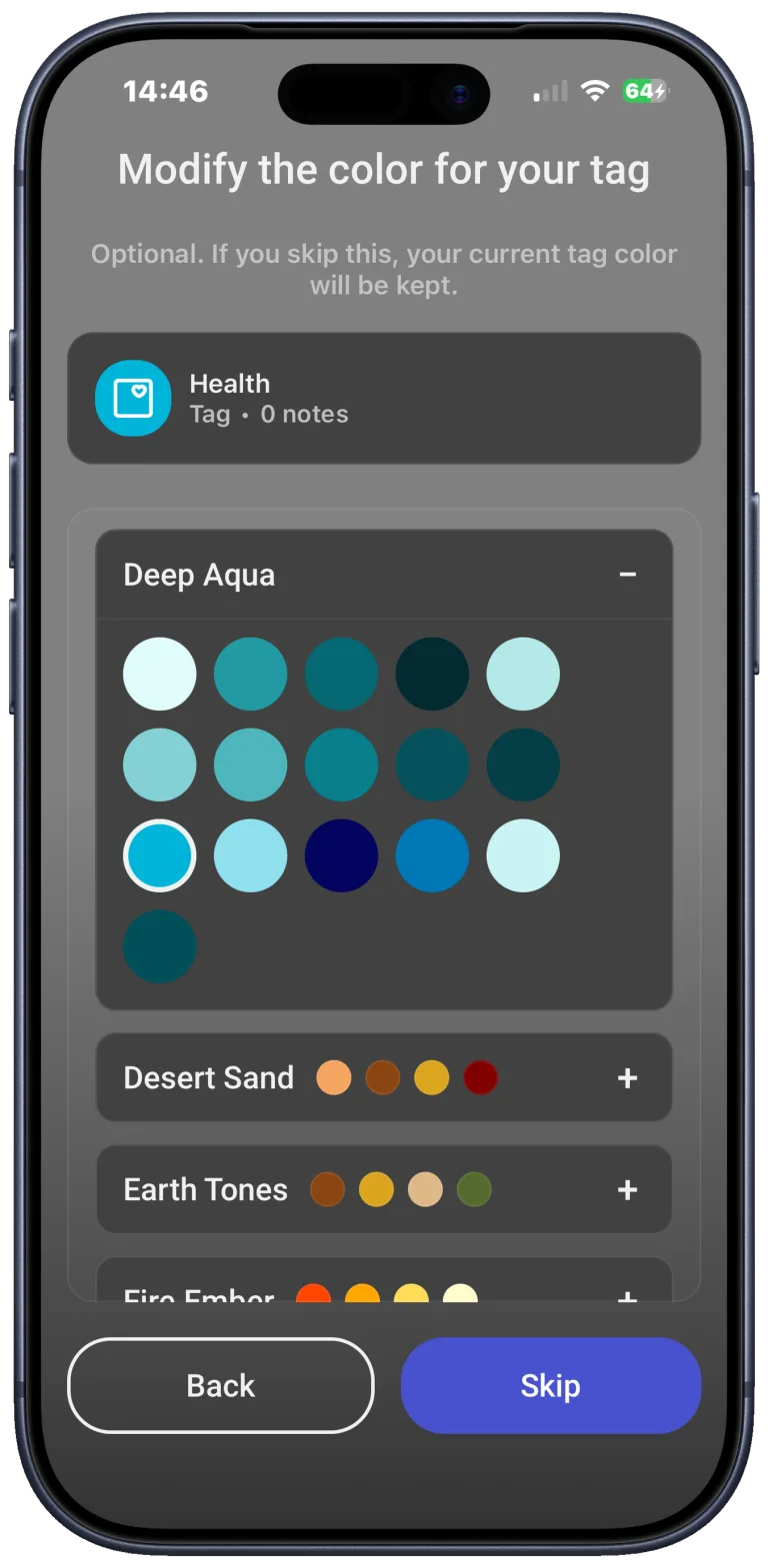
2. Make each tag recognizable
When you make a tag, you name it, pick a color, then choose an icon or one of your own images, so you spot it before you read it. Rename a tag later and every note keeps it.
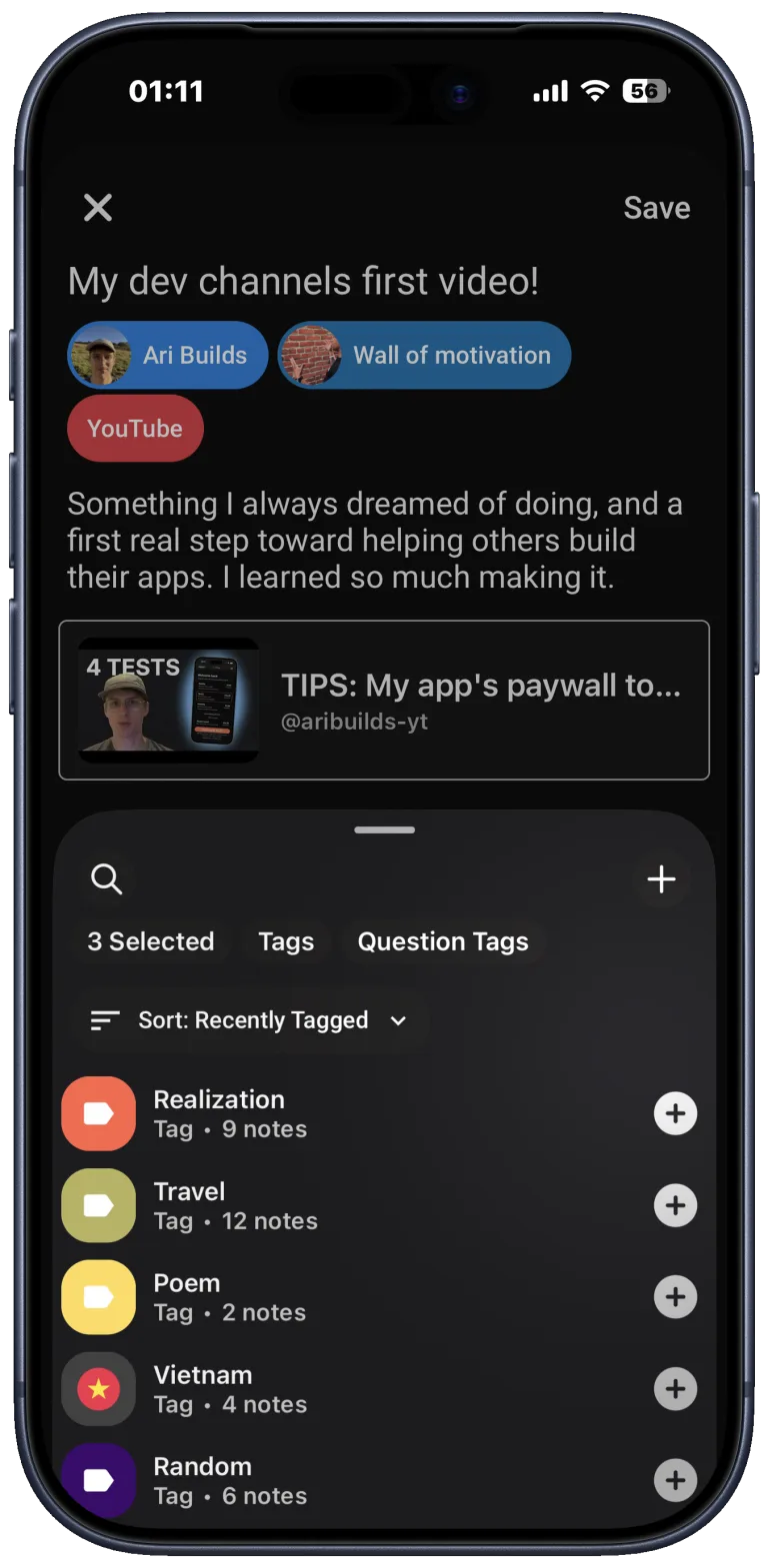
3. Tag things as you save them
Share a link, a post, an image or some text to Tessori from any app and add it to a new note. Tap its tags in the tag panel, or tap + to make a new one. The panel sorts your tags by the ones you tagged most recently, or by the ones you use most.
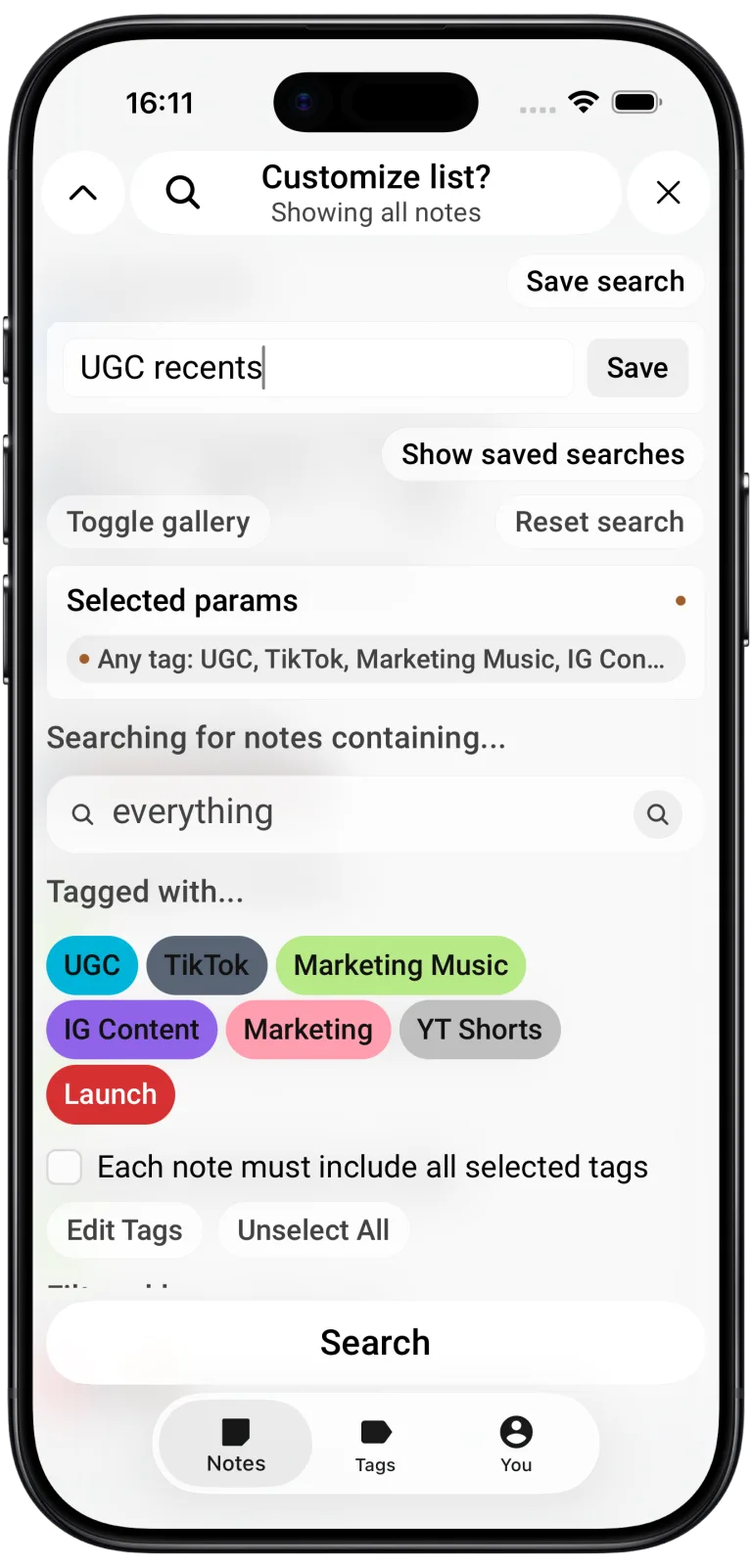
4. Combine tags to find things
On the Notes tab, tap Customize list? at the top, then Edit Tags, and pick two tags, like Paris and Food. You’ll see notes with either of them, or tick Each note must include all selected tags to see only the notes with both. Then tap Search.
How many tags should you use?
Start with a handful you know you’ll use: a few topics (Recipes, Travel, Work), and one or two that say what to do next (To try, To read). Add a new tag when you notice you keep wanting it, not before. A tag with one note is fine; a tag you never open isn’t.
Questions
Can you add tags to Apple Notes?
Yes. Type # followed by a word in a note, and it becomes a tag. Every tag appears under Tags at the bottom of your folder list.
Can a tag have more than one word?
In Apple Notes, a tag is one word, so people use a dash: #to-try. In Tessori, a tag’s name can have spaces, like To try.
Is Tessori free?
Tessori Local is free on iPhone and Android and keeps your notes on your phone. Tessori Plus is an optional subscription that adds sync across your devices, Tessori Web, and encryption with a password only you hold.
Good things deserve to be found again.
Available now on iPhone and Android.

iPhone · Available now

Android · Available now