
Is there an app to organize screenshots?

Ari, founder of Tessori · Updated November 1, 2026
Yes. Your phone’s Photos app already gathers screenshots in one album and can search the text inside them, which is enough to find one you remember the words of. To organize screenshots by why you took them, like recipes, outfits or ideas for work, save the ones worth keeping to a notes app with tags. Then you open one tag and see only those, instead of scrolling past thousands.
Why screenshots get lost
A screenshot takes a second. A recipe from a story, a quote from a video, a jacket someone wore, directions to a café. Then it sits in your camera roll between photos of your friends and a parking spot, and a month later you scroll past it without noticing.
The problem isn’t that it’s hard to find a screenshot. It’s that nothing says what it was for.
What your phone already does
- iPhone: Photos keeps every screenshot in a Screenshots album, and its search finds text inside photos. Type a word you remember from the screenshot.
- Android: Google Photos has a Screenshots folder, and its search also finds text in images.
That’s good for finding a screenshot whose words you remember. It doesn’t help with “show me every recipe I screenshotted”, or with screenshots that are mostly pictures.
How to organize screenshots in Tessori
Tessori is a notes app for iPhone and Android made for finding things again: combine tags, dates and filters into searches that show exactly what you want to explore right now. You save the screenshots worth keeping, give them tags, and every note shows its tags.
1. Save a screenshot with its tags
In Photos, tap Share and pick Tessori. Tessori opens with the screenshot: add it to a new note, tap one or two tags, like Recipes or Outfits, add a line about why you kept it if you like, and tap Create. Tessori keeps its own copy of the image, so the note still has it if you clear out your camera roll.
2. Open a tag and flip through it
Tap a tag on any note to see everything you saved with it, or pick it in search. Then tap Toggle gallery in the search panel to see one note at a time and swipe to the next.
3. Find one when you only remember the picture
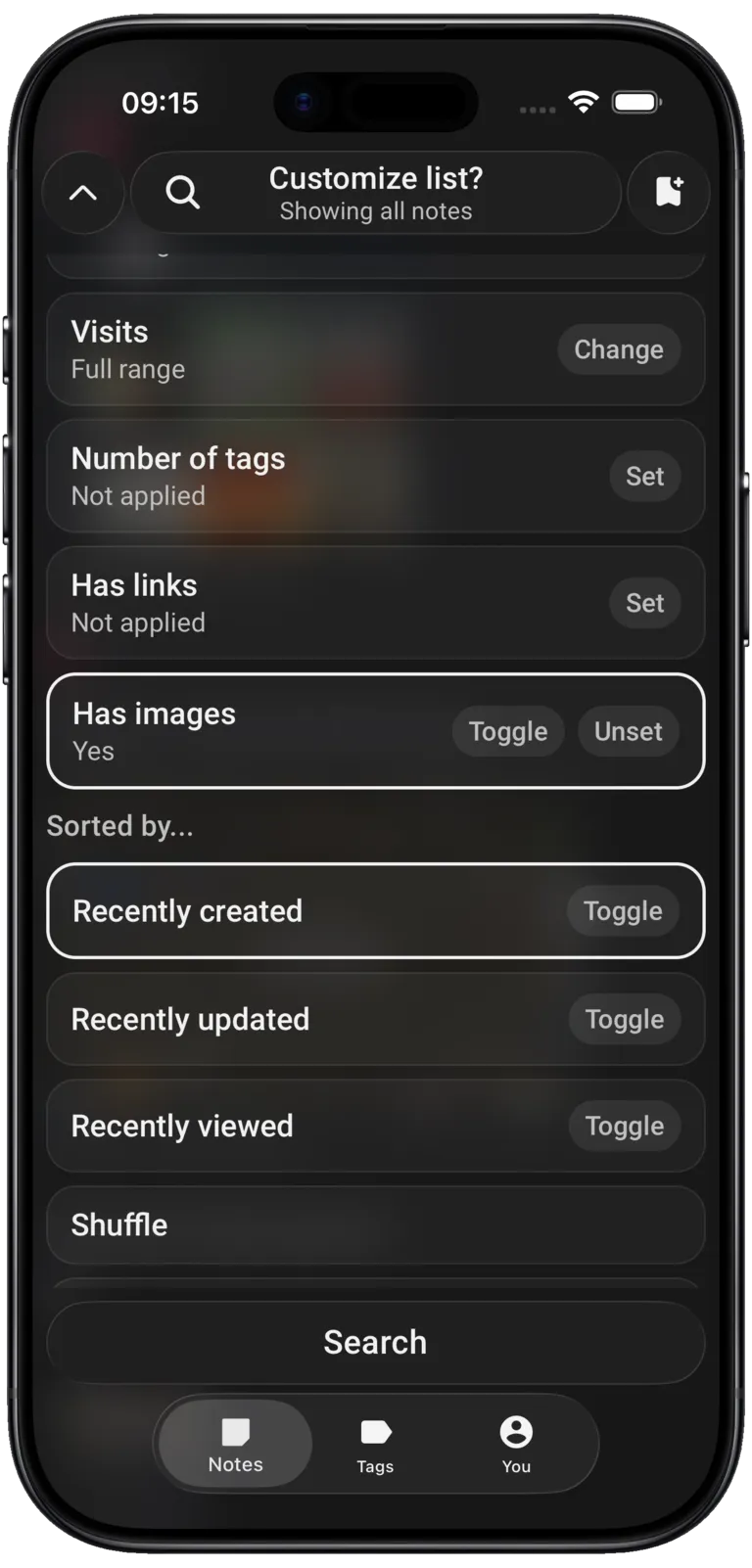
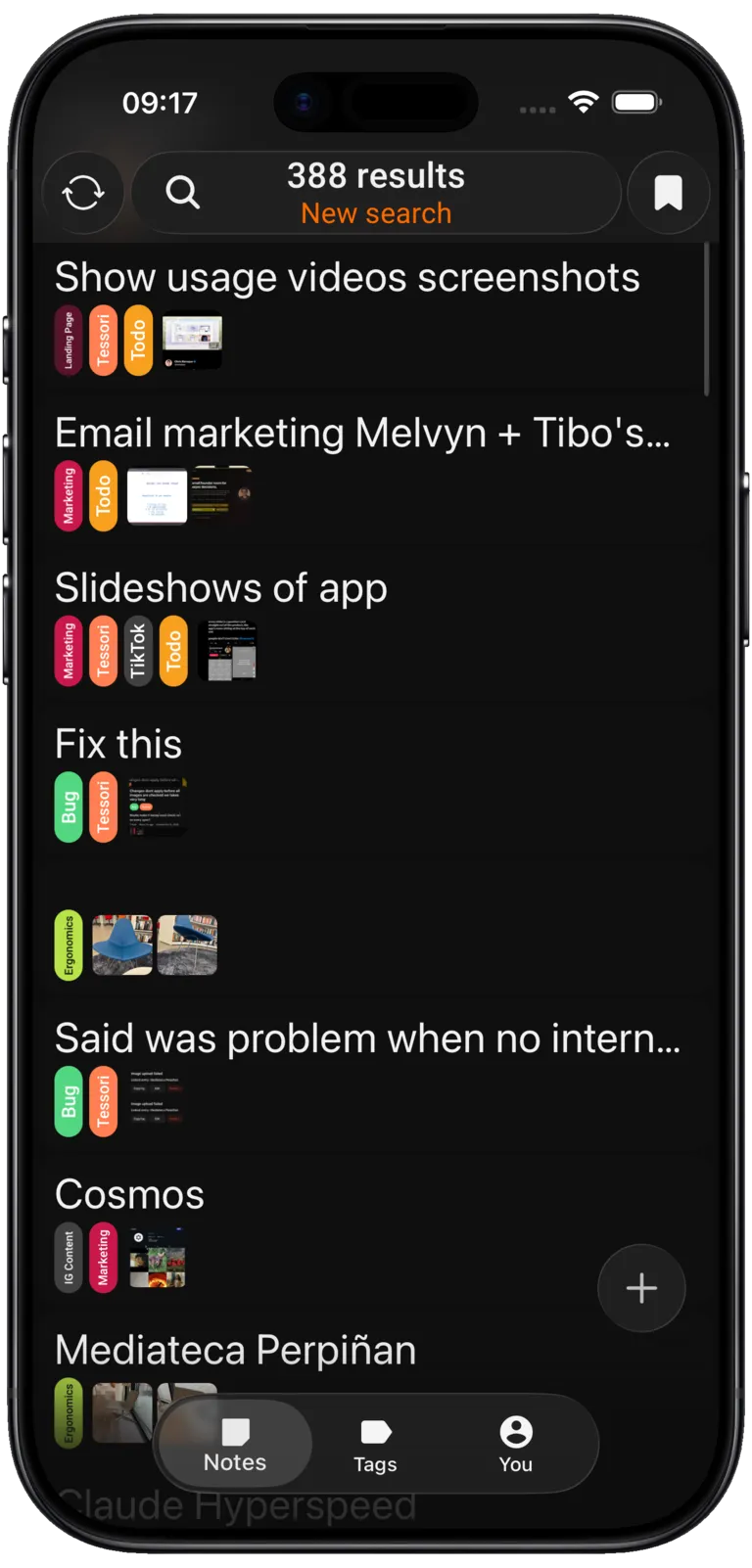
In the search panel, set Has images to Yes and sort by when you saved it. Then turn on Minimal list mode in Settings → Search: each note becomes one line with small image thumbnails, so you can skim hundreds in seconds. See it step by step.
A few tags to start with
Tag by what the screenshot is for, not by where it came from. A few that work for most people: Recipes, Places, Outfits, Quotes, Ideas, and To try. Add your own when you notice a pile forming.
Questions
Can Tessori search the text inside a screenshot?
No. Tessori searches a note’s title and description. Your Photos app can search text inside images, so use it when you remember the words, and Tessori’s tags and filters when you remember what it was for.
Does it work on Android?
Yes. Tessori is on iPhone and Android, and you share screenshots to it from Google Photos the same way.
Is Tessori free?
Tessori Local is free on iPhone and Android and keeps your notes on your phone. Tessori Plus is an optional subscription that adds sync across your devices, Tessori Web, and encryption with a password only you hold.
Good things deserve to be found again.
Available now on iPhone and Android.

iPhone · Available now

Android · Available now